Start Driving & Navigation
Operational driving begins with selecting the route. The system then supports the driver visually and acoustically in precisely driving the route.
1. Select Route
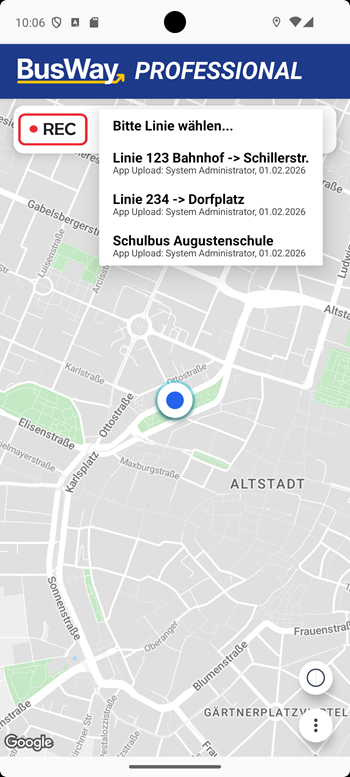
To start a trip, press the button "Please select route..." in the top bar of the home screen. Select the desired route from the menu that appears.
2. Start of Trip & Mid-Route Entry
After selection, the map focuses on the current position.
- Regular Start: Drive to the first stop. The map shows your current position and the start stop on the map.
- Mid-Route Entry: If the vehicle is already on the route, the system asks if you want to resume navigation at the current position ("Route detected").
If the transport planner wants the driver to be navigated from the depot to the first stop as well, this positioning trip must be created as a separate route path.
Background: Dynamic navigation (as with car apps) does not take place for safety reasons. This prevents heavy vehicles from being guided onto unsuitable paths (e.g., field tracks or narrow alleys).
3. Active Navigation
During the drive, the display provides all relevant information in real-time.
Controls & Indicators
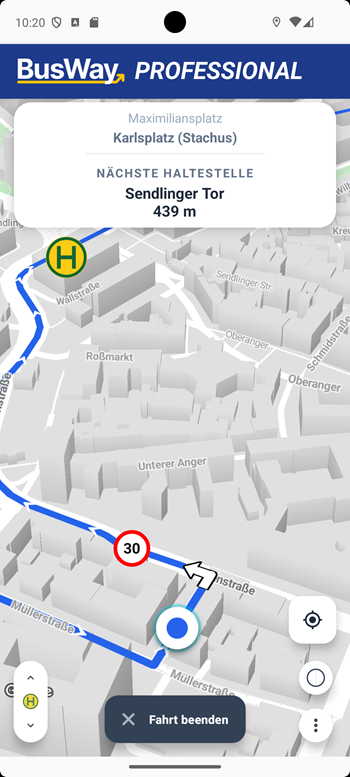
- Routing: The blue line marks the path, arrows show the driving direction.
- Speed Limits: Red circles (e.g., "30") warn of speed restrictions.
- Manual Stop Selection (Bottom Left):
- Should the GPS detection be inaccurate or a detour is being driven, you can manually correct the active target stop.
- Use the arrow keys
^andvin the button at the bottom left to jump to the previous or next stop.
4. Approaching Stops & Announcements
BusWay specifically supports you in braking precisely for stops – even with poor visibility or obscured signs.
Acoustic Driver Assistance
Your system provides voice cues intended only for you as the driver:
- Pre-warning: The next stop is announced in good time before the halt.
- Precision Announcement: Exactly upon reaching the GPS position of the stop sign, "Stop reached" sounds. This allows you to stop with pinpoint accuracy without local knowledge.
The precise announcement can only occur if the position of the stop was set exactly in the editor.
Attention: Imported routes (e.g., from GTFS data) are often inaccurate. We strongly recommend manually editing the position of stop points in the editor to ensure the reliability of announcements.
Visual Confirmation
As soon as the stop point is reached, the display in the upper area changes:
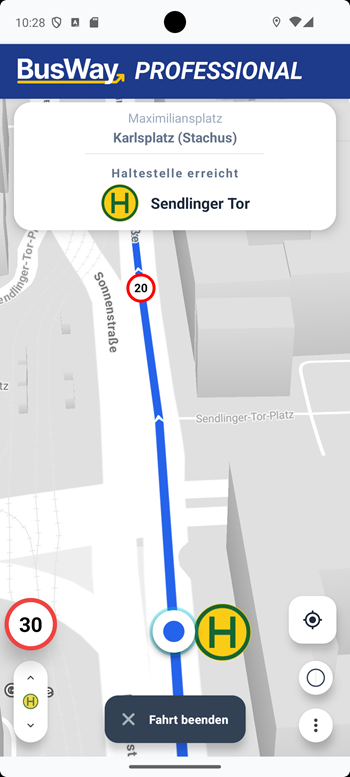
The system then automatically switches to the next stop as soon as you continue driving.
5. End Trip
To leave the active route path (e.g., at the terminal station):
- Press the button "End Trip" at the bottom edge of the screen.
- Confirm the security prompt.