The Overview
After logging in, you reach the home screen. This serves as the starting point for all trips.
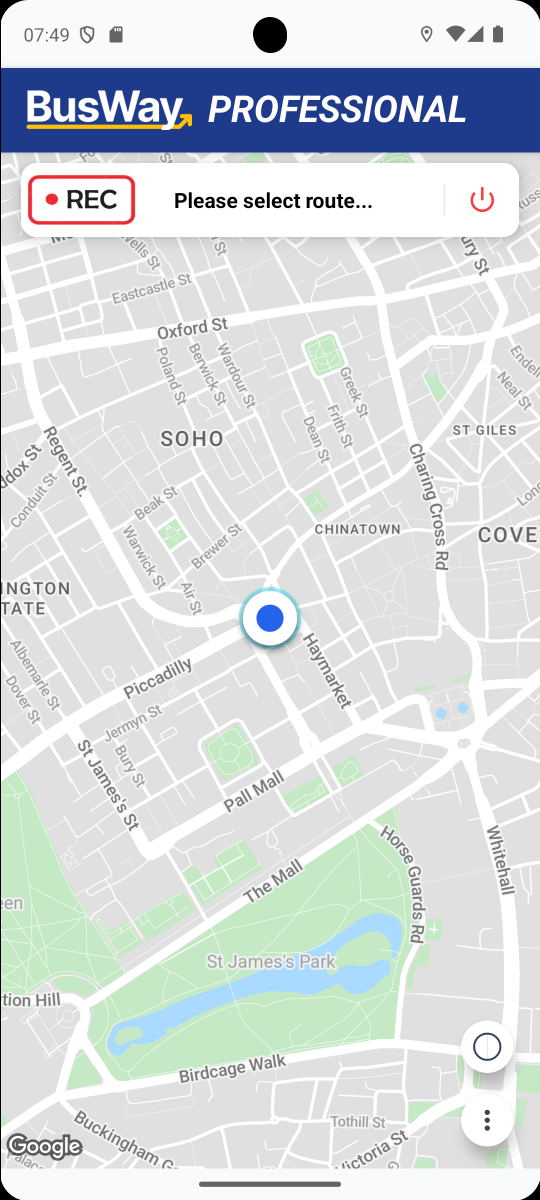
1. The Header Bar (Controls)
The central functions are located in the upper area:
- REC (Recording): Only visible with appropriate permission. Starts the recording of a new route (see Record Routes).
- "Please select route...": Tap on this field to select a line and start the trip.
- Logout Button: ⏻ Here you log out and return to the login screen.
2. Map & Position
The map visualizes your current GPS position as a blue dot.
- Move: Swipe with your finger to move the map section.
- Zoom: Use two fingers (pinch apart/together) to change the scale.
- Tilt: Use two fingers (move parallel) to change the tilt of the map.
3. View & Menu (Bottom Right)
At the bottom right edge are the buttons for controlling the view:
- Center (Crosshairs):
- This button only appears if the map section has been moved manually and your own position is no longer in focus.
- Pressing it re-centers your position.
- Day/Night (Circle): Toggles the map view between light and dark design.
- Menu (Three Dots): Opens the menu.
Next Step: Begin your first trip in the chapter Route Selection & Navigation.