Record New Routes
BusWay allows you to digitize new route paths directly while driving. This function is particularly useful for capturing new routes or permanently saving detours.
The REC button only appears if your administrator or transport planner has granted you permission to record.
1. Start Recording
- Tap the REC button at the top left of the home screen.
- A brief instruction on the process appears. Confirm this.
- Press the green button "Start Recording" as soon as you are ready to depart.
The system now records your exact GPS path.
2. Defining Stops
During the drive, you will see the button for adding stops at the bottom left.
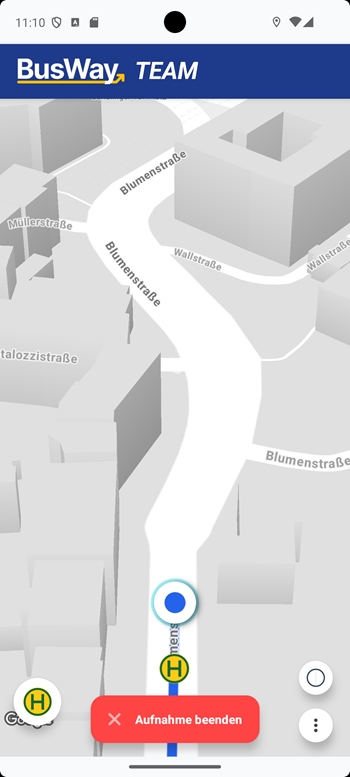
The Process at a Stop
When you reach a stop, proceed as follows:
- Stop: Approach the stop exactly as intended in regular operation.
- Secure: Bring the vehicle to a standstill.
- Add: Tap the Stop-Button at the bottom left.
- Name:
- A dialog window opens.
- Enter the name of the stop (e.g., "Market Square").
- Tip: If you leave the field empty and confirm, the system automatically assigns names like "Stop 1", "Stop 2", etc.
For safety reasons and in accordance with traffic regulations, operating the smartphone while driving is prohibited.
- Never set stops while passing by.
- Make inputs exclusively when the vehicle is stationary and the parking brake is engaged.
3. Completion & Saving
As soon as you have reached the last stop and finished the route path:
- Press the red button "End Recording".
- Select Save. (With "Discard", you delete the entire recording irrevocably).
- Give the entire route a meaningful name (e.g., "Line 105 - Outbound").
- Confirm the entry.
The Result
The recorded route is automatically transferred to the BusWay cloud and is immediately available to all drivers in your company.
Options for Post-Processing:
- Team Edition: You can correct typos in names directly in the app under "Manage My Lines".
- Professional Edition: The transport planner now has access to the route in the Web Cockpit and can correct names, add warning cues, insert speed limits, and edit geometry details.