Personnel Management
In the Personnel area, you manage access for your team.
Available Functions
Depending on the BusWay edition, different functions are available to you:
| Function | Edition | Description |
|---|---|---|
| Company Admin | All | Has full access to all areas and settings. |
| Transport Planner | Professional | Can plan routes and manage employees, but cannot change company settings. |
| Driver | All | Can only log in to the app (Navigation & Recording). |
Note for Planners
In the Professional Edition, Admins can also create Transport Planners. These planners can, in turn, manage drivers independently.
Creating & Editing Drivers
Click on "Create New" in the overview or click on an existing entry.
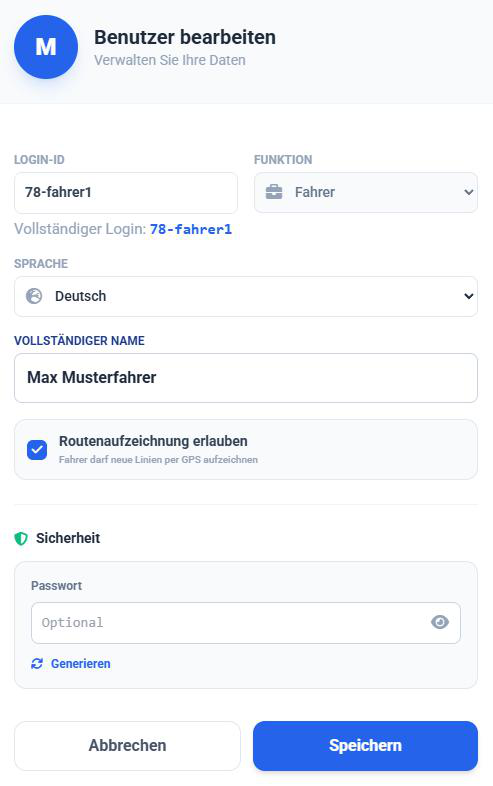
Settings in Detail
- Login ID: The username for logging into the app (e.g.,
driver1ormueller). An ID is automatically prefixed to the login name. The complete login entry for this employee is displayed below. - Function: Choose here whether the user is a Driver or (only in Pro) a Planner.
- Language: The default language of the app for this user (e.g., German/English).
- Full Name: The real name for internal overview in the table.
Permissions
- Allow Route Recording:
- Enabled: The driver sees the "Record" button in the app and can record new line paths via GPS.
- Disabled: The driver can only navigate existing routes.
- Tip: Disable this for regular line drivers to avoid accidental recordings.
Security
Here you assign the password.
- Click Generate to create a secure password.
- Or type in your own password.
Practice Tip: Simple Login
Since drivers do not have access to sensitive administrative data in the app, passwords here do not need to be highly complex. Feel free to use simple numbers for Login and Password (e.g., Personnel Number and PIN), as your drivers often already know from POS systems. This enormously facilitates quick login into the system.
Sharing Credentials
Your employee only needs the following to log in to the app:
- The Login ID
- The Password